How do I switch bidding profiles?
You always bid with the active profile: its name is shown in the red button at the top right. So switch before you bid. A bid is binding and the invoice is issued in the name of the profile you bid with.
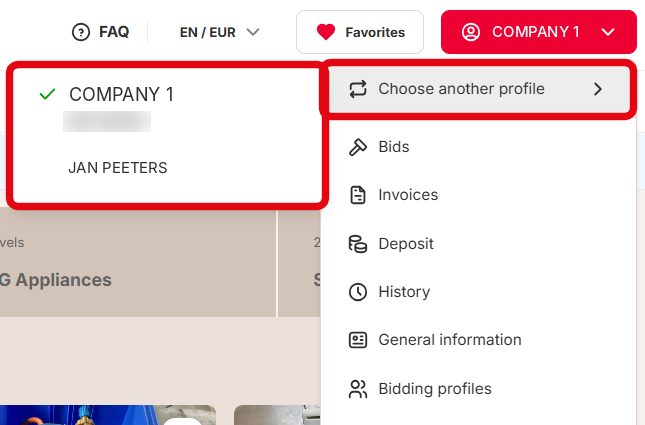
Fastest: via the menu at the top right
- Click the red button with your name.
- Choose Choose another profile.
- Click the profile you want to bid with. The check mark shows the active profile.
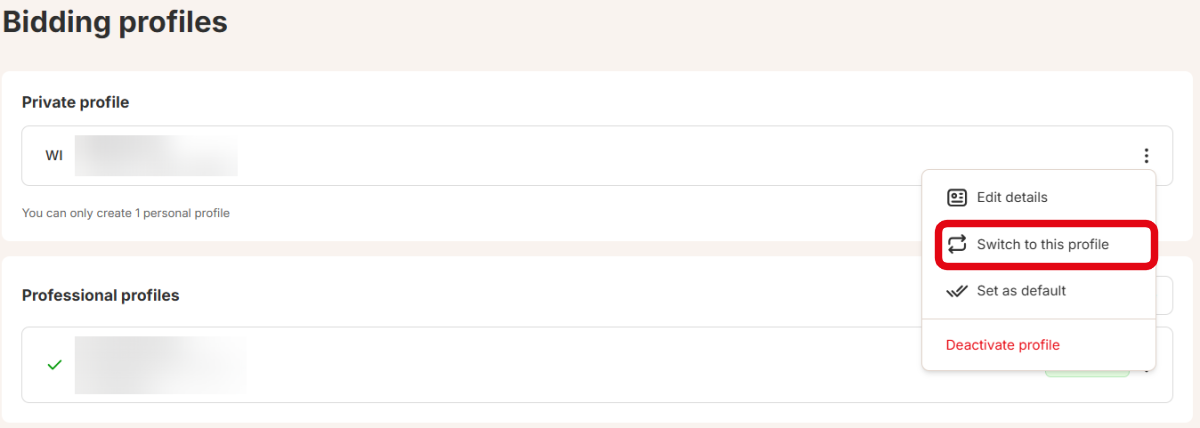
Via Bidding profiles
- Click the red button with your name at the top right and go to Your Account > Bidding profiles.
- Click the three dots next to the profile.
- Choose Switch to this profile.
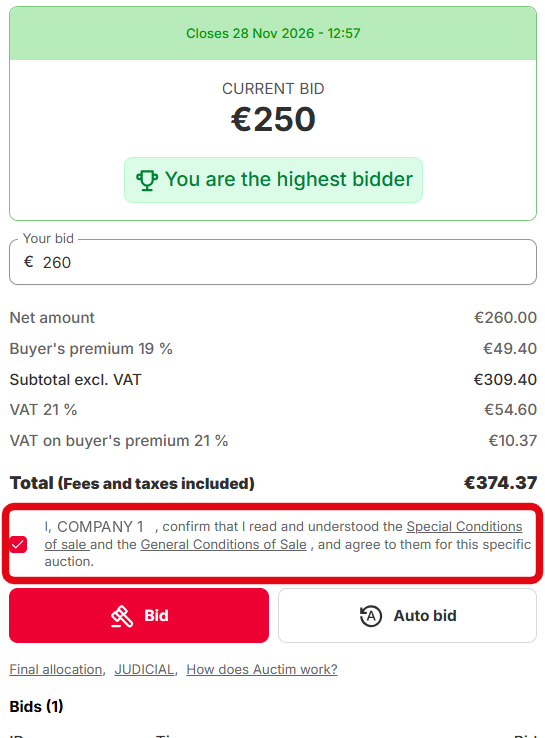
Check when bidding. In the bidding panel, the name of the active profile appears in the confirmation, for example "I, COMPANY 1, confirm that I read and understood the Special Conditions of sale…". Is the wrong name shown? Switch profiles first.
Please note: the deposit applies per bidding profile. If you switch to another profile, you pay a separate deposit there.
Did you bid with the wrong profile after all? An invoice can only be reissued in another name within 10 days of invoicing, on request and against an administration fee.
Related: What is a default profile? · Does my deposit apply to all my bidding profiles?
Was this article helpful?
That’s Great!
Thank you for your feedback
Sorry! We couldn't be helpful
Thank you for your feedback
Feedback sent
We appreciate your effort and will try to fix the article